
Convert Bank Statements to Excel
Excel gives you the full power of a spreadsheet to analyze your transactions. Once you have your bank statement data in Excel format, you can add formulas to calculate totals, create pivot tables to spot spending patterns, build charts to visualize cash flow, and organize everything across multiple sheets. It's the format to choose when you want to do more than just import data somewhere else.
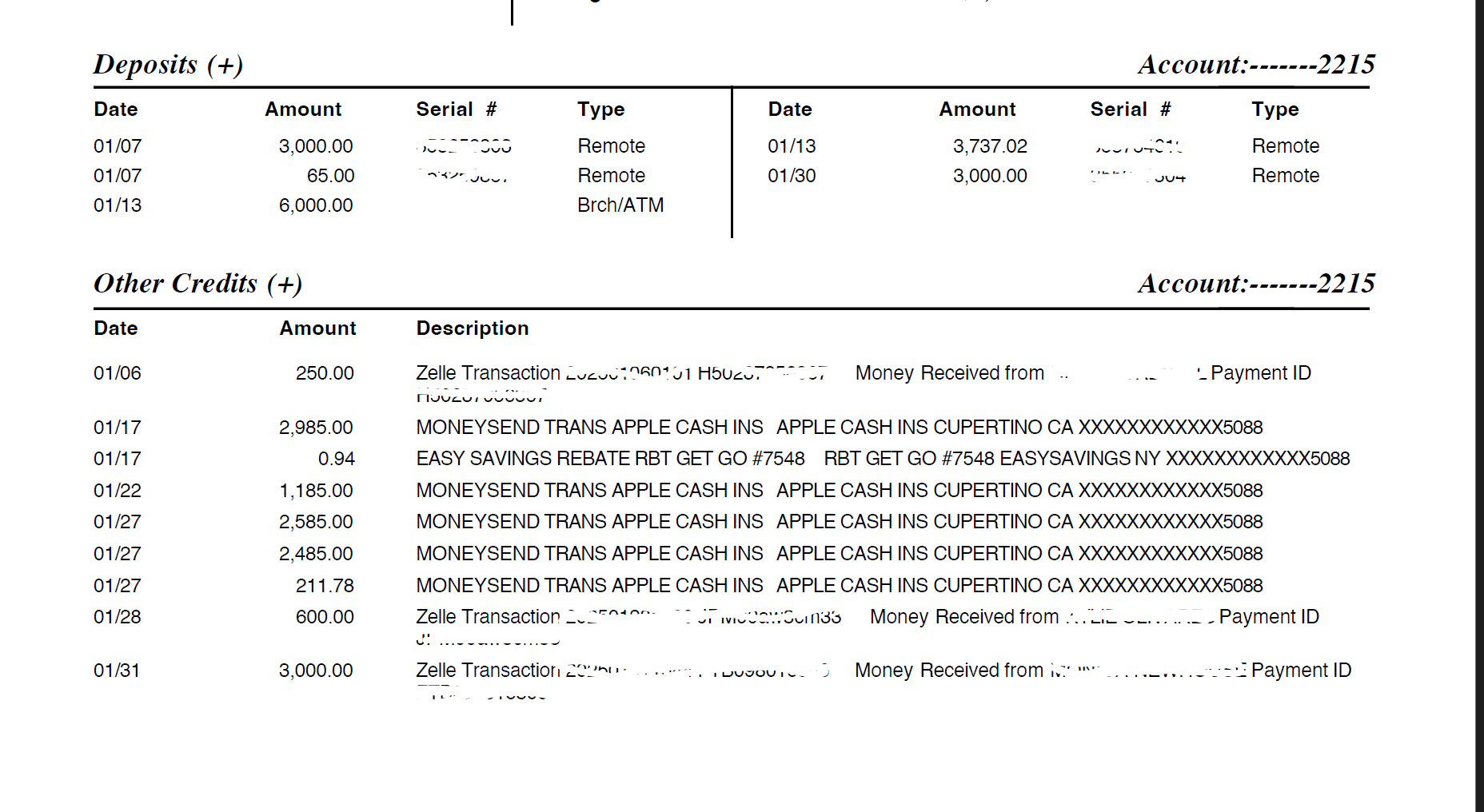
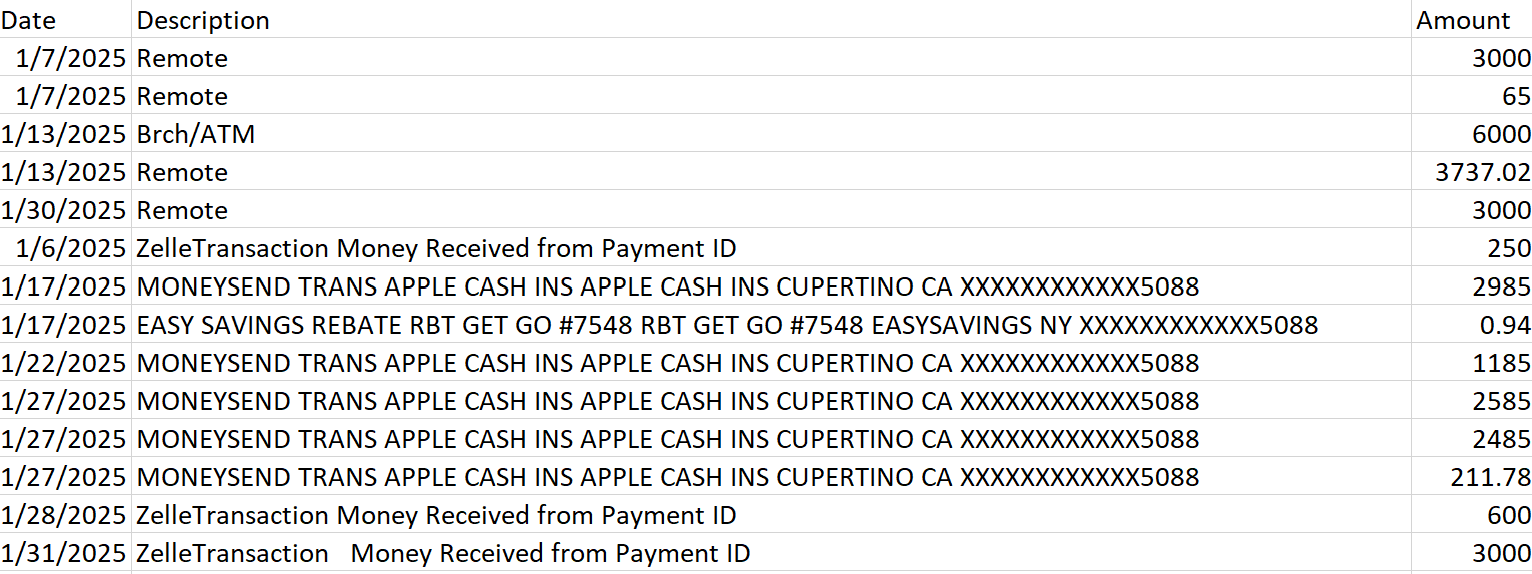
Our converter extracts transaction data from your bank statement PDFs and outputs a clean CSV file that Excel opens perfectly. You get three columns—date, description, and amount—ready for you to work with. From there, you can add categories, create running balances, highlight important transactions, or build custom reports. Upload your statement below to get started.
Why Use Excel for Bank Data
Excel shines when you need to do analysis or create reports. You can use SUMIF to total spending by category, VLOOKUP to match transactions with invoices, or conditional formatting to flag large expenses. If you're tracking multiple accounts, you can keep each one on a separate sheet in the same workbook. And if you need to present your finances to a lender or investor, Excel lets you create professional-looking reports with charts and formatting.
The trade-off is that Excel files are larger than plain CSV and won't open in every program. If you just need to import data into accounting software, CSV is usually simpler. But for financial planning, budgeting, or any kind of custom analysis, Excel gives you tools that plain text formats can't match. Most people find they use both formats for different purposes.
Opening CSV Files in Excel
When you download your converted CSV file, Excel opens it directly with a double-click. The data loads into columns automatically, and from there you can save it as an XLSX file if you want to preserve formulas and formatting. Excel also has built-in tools for cleaning up imported data, like removing duplicates or splitting descriptions into multiple columns, which can be helpful if you're preparing data for deeper analysis. If you prefer CSV format, see our PDF to CSV guide, or our PDF to Excel converter for other document types.
Related Guides

Written by
Jeff GoughFounder of Statements to Sheets and Cascade Foundry LLC. Built this tool after converting 300+ pages of printed bank statements into CSV for a friend's QuickBooks catch-up. Read the full story →